Running service
How to prepare your menu for digital ordering: a checklist
Write down what your servers carry in their heads: clear dish names, required choices, ingredients, allergens, prices and photos. A checklist and an example.

WaiterPilot Operations
Updated , 9 min read
The short answer
A menu is ready for digital ordering when it writes down what servers would otherwise explain: a clear name for every dish, the choices each dish needs and which are required, priced extras, ingredients, kitchen-confirmed allergens, and a photo where you have one. Send it as a PDF or photos; our team loads it and you check it before guests see it.
Key points
- A digital ordering tool can only answer from what your menu says, so every gap becomes "please ask a member of staff".
- Mark which choices are required (side, cooking level, size): WaiterPilot won't let an order be confirmed until each one is picked.
- List only allergens your kitchen has confirmed, and keep staff as the final word on every allergy question.
- Send the menu as a PDF or photos; a person on our team loads it, and you check every price and choice before going live.
- Plan about half a day of writing for a 40-dish menu, most of it on descriptions and allergens.
On this page
A menu is ready for digital ordering when it says, in writing, everything your servers would otherwise explain at the table. That means a clear name for every dish, the choices each dish needs (and which of them are required), extras with their prices, ingredients and the allergens your kitchen has confirmed, and a photo where you have one. With WaiterPilot you send the menu as a PDF or photos, a person on our team loads it, and you check it before any guest sees it.
This guide covers each part of the menu in the order the setup team works through it. It ends with a checklist you can print, and a worked example of how long the job takes.
Why does the menu matter more with digital ordering?
Short answer: a server can fill gaps from memory, but software can’t. A digital ordering tool can only repeat what your menu says.
At the table, a good server knows that the fish comes with fries unless you ask for salad, that the burger is cooked medium unless you say otherwise, and that the house dressing has mustard in it. None of that is usually printed. When guests order on their phones, that knowledge has to be written down somewhere, or nobody gets it.
WaiterPilot answers guest questions from your menu and nothing else. When the menu doesn’t say, the chat tells the guest it doesn’t have that information and asks them to check with a member of staff. That is the safe default, but every unanswered question is a guest waiting for a person. The more your menu says, the fewer of those there are.
Guests do want the detail. In the National Restaurant Association’s 2024 survey of full-service diners, 21% named food details such as allergens as an area where technology should help most, alongside making ordering easier and faster (28%) (NRA, 2024, p. 7).
What does the setup team load from your PDF?
Short answer: dish names, sections, prices, descriptions, choices and extras, and photos if you send them. You check all of it before going live.
Send your current menu as a PDF, or clear photos of every page. A person on our team loads it into WaiterPilot; the product itself doesn’t read photos of menus. Menu loading is part of the free setup, and most restaurants are live within two weeks of the first call. The time goes mostly into checking the menu with you, because the chat answers from it.
| Part of the menu | What you send | What we load | What you check |
|---|---|---|---|
| Sections | Your menu as it’s printed | Starters, mains, drinks and so on | The order guests will see |
| Dish names | The names staff use | One name per dish, as written | Spelling, and that the kitchen recognizes each one |
| Prices | Current prices | Each dish and each paid extra | Every price against your printed menu |
| Choices | Which dishes need a side, a cooking level, a size or a flavor | Choice groups, marked required or optional | That required ones really are required |
| Descriptions | What’s in each dish | A short description per dish | That it answers “spicy?”, “vegetarian?”, “what comes with it?” |
| Allergens | Only what your kitchen has confirmed | The allergens you list | Every allergen line, twice |
| Photos | Dish photos, if you have them | Linked to their dishes | The right photo on the right dish |
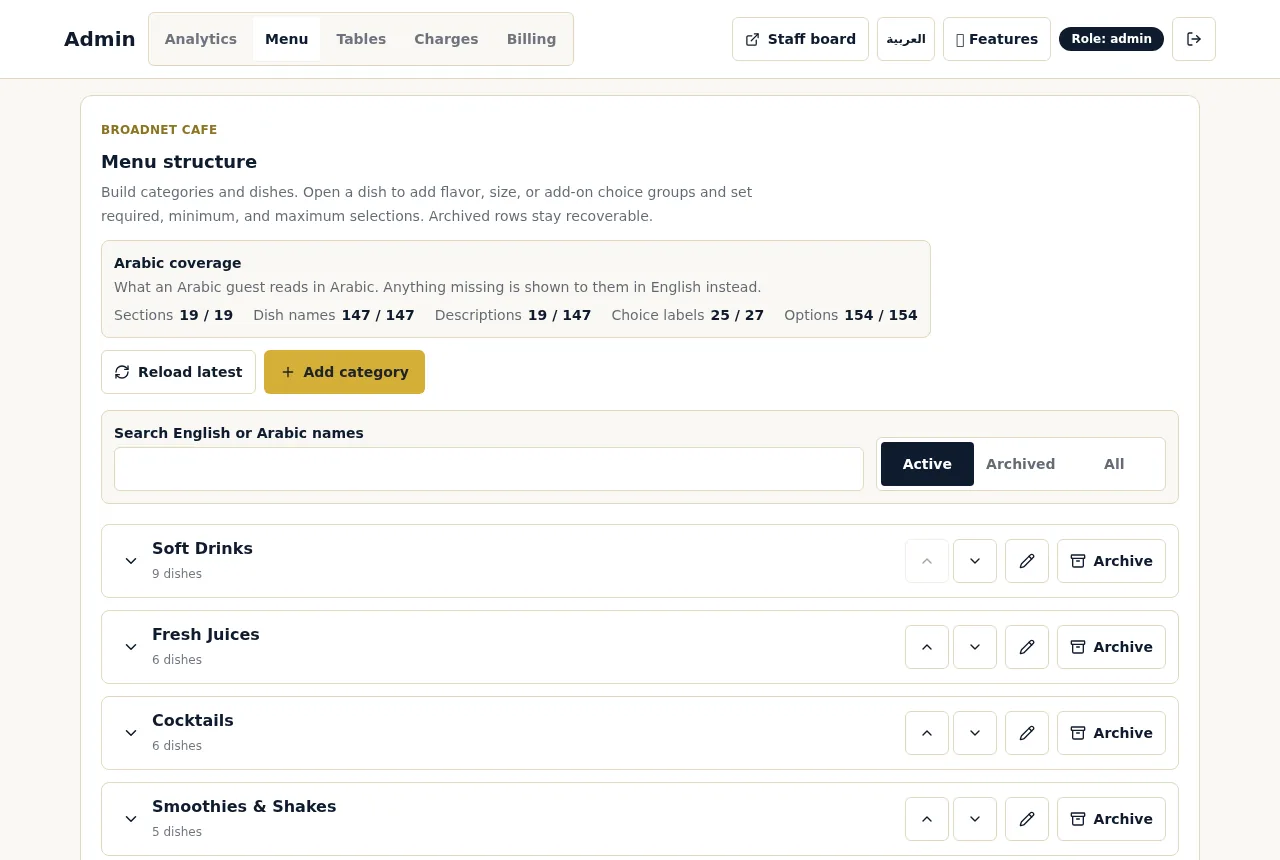
| Arabic text | Arabic names and descriptions, if you have them | Saved next to the English | The coverage panel in the menu editor |
Tax, service charges and any gratuity are not part of the menu. You set them separately as bill charges, and they appear on the guest’s live bill.
How should you write dish names?
Short answer: use the name your staff and kitchen already use, and make it describe the dish.
Tickets show dish names as written on the menu, so the name a guest orders is the name the kitchen reads. A few rules help:
- One dish, one name. If the menu says “Casa burger” and the kitchen calls it “the double”, pick one before setup.
- Say what it is. “Grandma’s Sunday” tells nobody anything. “Grandma’s Sunday: slow-roast lamb shoulder” works on a phone and on a ticket.
- Keep sizes and variants out of the name. “Lemonade (large)” and “Lemonade (small)” are better as one dish with a required size choice.
- Keep translations as extra text, not as the name. Arabic names and descriptions are stored next to the English ones. The menu editor shows how much of your menu an Arabic-speaking guest reads in Arabic; anything missing is shown to them in English. Guests who write in other languages get answers in their own language, with dish names as written on your menu.
How do you write choices, sides and extras?
Short answer: list every choice a server would ask about, say which ones are required, and price every paid extra.
This is where most menus are thinnest, and where digital orders go wrong. In WaiterPilot, required choices (a size, a side, a flavor) have to be picked before an order can be confirmed, and the chat asks the guest about them. So a missing choice group means either a wrong order or a server walking over to ask.
Here is one dish written two ways. Casa Olivo is a fictional restaurant we use for examples (an example, not a customer).
| Printed menu only | Ready for digital ordering | |
|---|---|---|
| Name | Steak frites | Steak frites: grilled sirloin with fries |
| Price | $28 | $28 |
| Required choice | (server asks) | Cooking: rare, medium rare, medium, well done |
| Required choice | (server asks) | Side: fries or green salad |
| Optional extras | (server knows) | Peppercorn sauce +$3; extra fries +$4 |
| Description | (none) | 250 g sirloin, fries, herb butter. Not spicy. |
| Allergens | (kitchen knows) | Contains milk (herb butter). Peppercorn sauce contains milk. |
| Photo | (none) | One clear photo of the plated dish |
The right-hand column is what a guest can ask about and what the kitchen ticket can show. Notes such as “no herb butter” go on the ticket as the request was taken, and they are not translated for staff.
How do you write ingredients and allergens?
Short answer: write down what’s in each dish, including the hidden ingredients, and list only the allergens your kitchen has confirmed.
Allergens hide in sauces, dressings, stocks, marinades, frying oil, garnishes and bread on the side. Those are the ingredients guests can’t see and servers forget. Write them into the description.
Then the allergen line. List only what your kitchen has checked, and leave the rest blank rather than guess. When a guest asks about an allergy, WaiterPilot gives what your menu says and asks the guest to confirm with staff. It never tells a guest a dish is safe, and it doesn’t alert staff by itself. Your team always has the final word, so pair the menu with a house rule: any allergy mention means a person goes to the table. Our page on allergies and dietary questions sets out that rule and summarizes what US, EU and UK allergen rules ask of restaurants.
Diet labels follow the same rule. Mark a dish vegetarian, vegan, halal or gluten-free only if your kitchen can stand behind it.
What about prices and photos?
Short answer: prices must match your printed menu exactly, and photos are worth adding for the dishes guests ask about most.
Prices. Guests see the same prices on their phones as on the printed menu, so check them line by line. Tax and any service charge or gratuity you add are set separately, as bill charges on the guest’s live bill. WaiterPilot also lets you hide prices from guests, which some restaurants prefer.
Photos. A dish name in WaiterPilot’s chat opens the dish photo, so a guest who asks “what’s the mezze platter?” can see it. You don’t need a photo of everything. Start with:
- your best sellers;
- dishes with unfamiliar names;
- anything guests often ask the server to describe.
Shoot in daylight or under even light, one dish per photo, plated as it’s served. A phone camera is fine. Avoid photos of dishes you no longer make.
Your menu checklist
Print this and work through it before you send the menu.
- Collect the current menu, including drinks, desserts and specials you run often.
- Give every dish one name that the guest, the server and the kitchen all use.
- Turn sizes and variants into choices on one dish, not separate dishes.
- For each dish, list every choice a server would ask about.
- Mark each choice as required or optional.
- Price every paid extra.
- Write a one- or two-line description that answers “spicy?”, “vegetarian?” and “what comes with it?”.
- Add hidden ingredients: sauces, dressings, oils, garnishes, bread.
- Add allergens your kitchen has confirmed, and leave unconfirmed ones blank.
- Check every price against the printed menu.
- Gather photos for best sellers and unfamiliar dishes.
- Add Arabic names and descriptions if you have them.
- Note the dishes you don’t serve every day, so you know which to mark sold out before service.
- Send it as a PDF or photos, then check the loaded menu line by line.
| Check | Done? |
|---|---|
| Every dish has one clear name | |
| Required choices marked on every dish that needs one | |
| Every paid extra has a price | |
| Descriptions answer spicy, vegetarian and sides | |
| Allergens: kitchen-confirmed only | |
| Prices match the printed menu | |
| Photos on best sellers | |
| Part-time dishes listed for sold-out marking |
How long does it take? A worked example at Casa Olivo
Casa Olivo is a fictional restaurant (an example, not a customer). The minutes below are assumptions to replace with your own.
Casa Olivo has 40 dishes and 12 drinks. Its printed menu has names and prices, a few one-line descriptions and no allergen lines.
| Task | Assumption | Time |
|---|---|---|
| Fix names and turn variants into choices | 1 minute × 52 items | 52 minutes |
| Write choices and extras | 2 minutes × 40 dishes | 80 minutes |
| Descriptions with hidden ingredients | 3 minutes × 40 dishes | 120 minutes |
| Allergen check with the head cook | 1 minute × 40 dishes | 40 minutes |
| Price check against the printed menu | 15 seconds × 52 items | 13 minutes |
| Total | 305 minutes, about 5 hours |
Five hours is real work, but most of it is writing down what the kitchen already knows, and it is the same work a new server needs to learn the menu. The setup team does the loading; the owner and the head cook do the parts only they can do. The allergen check is the line not to shorten.
How do you keep the menu right after launch?
Short answer: mark sold-out dishes before service, and fix the gaps the reports show you.
- Sold out. The owner or manager marks a dish sold out from a phone, and WaiterPilot stops offering it right away. Do it before the doors open.
- Questions it couldn’t answer. The owner’s analytics list questions the chat couldn’t answer and things guests asked for that aren’t on the menu. Each one is a line to add.
- Recipe or supplier changes. A new sauce or a different bread changes the answer. Update the description, or mark the dish sold out until it’s right.
What to do next
Gather your current menu and work through the checklist above. The onboarding checklist shows what else setup covers, from bill charges to the test night, and how it works shows the order flow your menu feeds. If you’d like to see how a menu answers real questions first, try a sample order. Setup, menu loading, QR cards and staff training are free, and the first 30 days are free; after that it’s $200 per location per month, with 0% commission and no contract. Details are on the pricing page.
Questions readers ask
What format should I send my menu in?
A PDF is best, but clear photos of every page work too. A person on our team loads it, and you check the result before guests use it. The product itself doesn't read photos of menus.
Do I need photos of every dish?
No. Photos help guests decide, and in WaiterPilot a dish name in the chat opens its photo, but a dish without a photo can still be ordered. Start with your best sellers and anything guests often ask about.
What happens if a guest asks something my menu doesn't cover?
The chat says it doesn't have that information and tells the guest to ask a member of staff. It is built not to guess, though like any AI it can word an answer badly. The owner's reports list those questions, so you can add the missing detail.
Should I list allergens for every dish?
List the ones your kitchen has confirmed, and leave the rest blank rather than guess. WaiterPilot repeats what the menu says and asks the guest to confirm with staff; your team has the final word.
Can I change the menu after going live?
Yes, from the owner's admin. Dishes can be marked sold out from a phone with the owner or manager PIN, and WaiterPilot stops offering them right away.
Sources
- Restaurant Technology Landscape Report 2024, National Restaurant Association, 2024 (checked 2026-10-15)