Running service
QR code table cards: where to put them, what to write, how to keep them
One code per table, placed where a seated guest sees it, with plain wording, a printed menu nearby, and a routine for cleaning, checking and replacing cards.

WaiterPilot Operations
Updated , 9 min read
The short answer
Give every table its own QR card, upright, facing the seats and away from glare, so a seated guest sees it without moving plates. Write what the code does, the table name, that no app is needed, and that a printed menu is available. Wipe the cards with the table, scan each one weekly, and reprint any that are scratched, faded or misplaced.
Key points
- Each WaiterPilot table has its own QR code, so a card on the wrong table sends orders to the wrong table.
- A seated guest should see the card without moving anything; test every placement by scanning from the farthest seat.
- The card needs one instruction, the table name, "no app needed" and a line offering the printed menu.
- Cards are reprinted from the owner's admin, in three sizes including a table-stand card.
- About half of US full-service diners say they would order by QR, so keep printed menus and a server's help on hand.
On this page
Give every table its own QR card and put it where a seated guest can see it without moving a plate: upright, facing the seats, away from glare. Keep the wording short: what the code does, the table name, that no app is needed, and that a printed menu is available. Then treat the cards like any other table item. Wipe them with the table, check them every week, and reprint any that are scratched, faded or on the wrong table.
That sounds simple, and it mostly is. The mistakes are small ones that cost orders: a card hidden behind the salt, a code that won’t scan under a pendant light, or a card that wandered from table 6 to table 9. This guide covers placement, size, wording, cleaning and replacement, with a worked layout for a fictional restaurant.
Why does every table need its own code?
Short answer: the code tells your staff which table is ordering. With WaiterPilot, each table has its own QR code and link.
Owners add tables by name in the admin, and each table gets its own QR code. A guest who scans it opens your menu for that table, in the phone’s browser, with no app and no sign-up. Orders, waiter calls, check requests and the live bill all belong to that table.
That has two practical results:
- A card on the wrong table sends orders under the wrong name. Cards get moved when tables are pushed together or reset by a new server. Write the table name on the card in large type, so anyone resetting a table can see it matches.
- The first order at each table waits for a person. Staff confirm it before it goes to the kitchen, and they can reject an order that looks wrong, such as one from a table nobody is sitting at. Later orders from that table can go straight to the kitchen, which is why the right card on the right table matters.
If a party moves, staff can move the party to another table from the staff screen. The card stays where it is.
Where should the card go?
Short answer: where a seated guest sees it at a glance and can scan it without lifting anything.
Placement does most of the work. A guest who has to look for the code, or move a glass to reach it, will often just wait for a server.
| Spot | Works? | Why |
|---|---|---|
| Upright stand at the open end of the table, facing the seats | Best | Visible from every seat, easy to pick up and scan |
| Stand next to the condiments, facing out | Good | Guests look there anyway; keep it in front of the bottles, not behind |
| Flat sticker on the tabletop | Fair | Gets covered by plates and menus; glare from overhead lights |
| On the wall beside a booth | Fair | Fine for booths; check guests on the far side can reach it |
| Under glass on the table | Poor | Reflections often stop the camera reading the code |
| Only on the printed menu | Poor | Gone once the menu is collected; a guest who wants to add dessert can’t find it |
A few rules of thumb:
- One card per table, two for long tables. Print the same table’s code twice and place one at each end. Every guest can scan it and order from their own phone.
- Face the seats, not the aisle. The card is for the people sitting down.
- Avoid glare. Matte finishes scan better under pendant lights and candles than glossy ones. Test at night with the room lit as it is during service.
- Outdoors, weigh it down. A terrace card that blows over is a card nobody scans.
Test every spot the same way: sit in the seat farthest from the card and scan it with an ordinary phone. If you have to stand up or lean, move the card or use a bigger size.
What size should the card be?
Short answer: big enough to scan from the farthest seat at that table. Test it rather than going by a number.
WaiterPilot’s admin prints QR codes in three sizes, including a table-stand card, and a printable staff guide. Which one you need depends on the table, not on a rule:
- Two-tops and bar seats: the smallest size is usually enough, because the card sits within arm’s reach.
- Four-tops and booths: the table-stand card, upright, at the open end.
- Long or shared tables: a larger print, or two cards with the same code.
A small code printed well scans better than a large code printed badly. Keep a clear white border around the code, don’t put a logo or pattern across it, and check the print isn’t blurred.
What should the card say?
Short answer: what the code does, the table name, “no app needed”, and how to get the printed menu.
Most guests decide in a second or two whether to scan. The card should answer their questions before they ask them: what happens when I scan, do I need an app, and can I still order with a person?
| Element | Example wording | Why |
|---|---|---|
| What the code does | “Scan to see the menu and order in your language” | Says what happens and why it’s worth it |
| Table name, large | “Table 6” | Staff can check the card matches the table |
| No app | “Opens in your phone’s browser. No app, no sign-up.” | Removes the most common reason not to scan |
| A person is still there | “Prefer a printed menu? Just ask.” | Keeps a path for guests who won’t scan |
| Waiter and bill | “Call a waiter or ask for the bill from your phone” | Tells guests they don’t have to catch an eye |
| Allergies | “Allergies? Please tell a member of staff.” | Staff have the final say on allergies |
| Wi-Fi, if needed | “Wi-Fi: CasaOlivo-Guest / password on request” | Only where mobile signal is weak indoors |
Keep it to those lines. A card with a paragraph of instructions gets ignored.
“In your language” is true of the chat: guests write in their own language and the chat answers in it. It has been tested in English, Arabic (several dialects) and Spanish, and it answers most other languages too. The screen buttons are in English or Arabic, with an EN/AR switch. If many of your guests read Arabic, print the card’s lines in both languages.
Be careful not to promise more than you deliver. Don’t write “order and pay”: WaiterPilot doesn’t take payment, and guests pay your staff as they do today. Don’t write “no waiting” either.
Will guests actually scan it?
Short answer: about half will order by QR, and older guests much less often, so keep a person and a printed menu in the picture.
In the National Restaurant Association’s 2024 survey of US full-service diners, 59% said they would open a menu by QR code and 48% would order with one. By generation, 60% of Gen Z, 69% of millennials, 52% of Gen X and 21% of baby boomers would order by QR (NRA, 2024, p. 6). A William Blair survey reported by Restaurant Dive found 47% of consumers uncomfortable using QR codes to view menus, order and pay in a March 2023 wave, and 65% of those over 60 (Restaurant Dive, 2023; a secondary report with no sample size given).
The card doesn’t have to convince everyone. It has to be easy for those who want it and easy to ignore for those who don’t. That is why the “Prefer a printed menu? Just ask” line matters, and why the printed menu stays.
Do you still need a printed menu next to the card?
Short answer: yes. QR ordering works alongside the printed menu, never instead of it.
Keep printed menus on the table or at hand. Some guests prefer paper. Some have no data, a flat battery or no phone. Some places expect a printed menu or price list to be available, so check the rules where you operate. And if your internet connection drops, the printed menu and a notepad are your fallback, because WaiterPilot runs in the browser.
A guest who orders from the printed menu orders with a server, and you ring it up the way you do today.
How do you clean and check the cards?
Short answer: wipe them every time you wipe the table, and check every card once a week.
- Protect them. Use a wipeable sleeve, a laminated card or a stand with a clear cover, and avoid glossy covers that add glare.
- Clean them with the table. A sticky or smeared code scans badly. Use the same cloth and cleaner you use for menus and condiment bottles, and let the card dry before guests sit down.
- Check them weekly. Scan every card with an ordinary phone and confirm it opens the right table. Look for scratches across the code, faded print, bent corners and cards on the wrong table.
- Check after moving furniture. After a private event or a rearranged room, scan every card before service.
When should you replace a card, and how?
Short answer: when it won’t scan first time, is faded or scratched, or has gone missing. Reprint it from the admin and test it at the table.
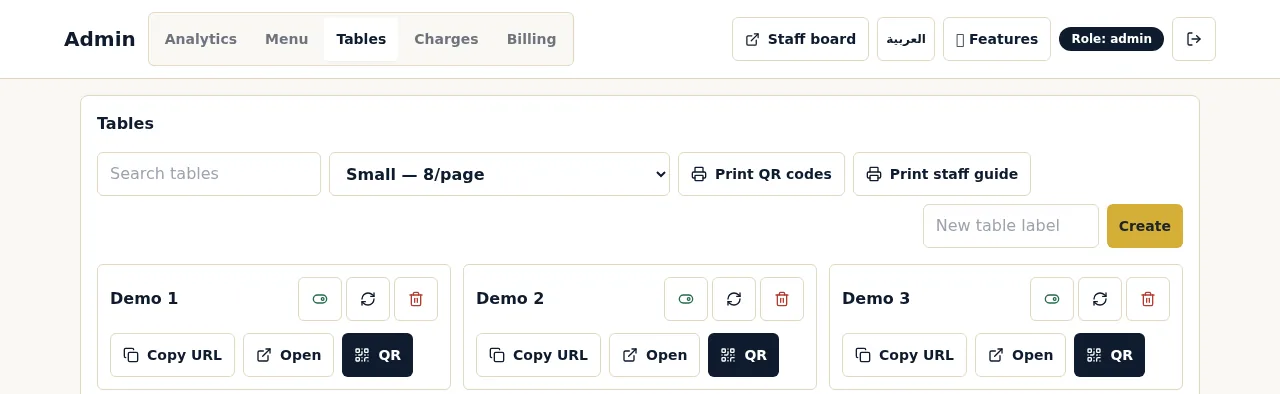
The Tables page in the owner’s admin has Print QR codes and Print staff guide buttons, with a choice of sizes. QR cards also come with the free setup.
- Print the table’s code from the Tables page, at the same size as the old one.
- Put it in its sleeve or stand.
- Scan it at the table and check it opens that table.
- Throw the old card away, so it can’t end up on another table.
Keep two or three spare sleeves and stands in the office. A missing card on a Friday is easier to fix with spares than with a trip to the printer.
A worked layout: Casa Olivo’s cards
Casa Olivo is a fictional restaurant we use for examples (an example, not a customer).
Casa Olivo has 18 tables: eight two-tops, five four-tops, two booths, one long table of ten and two tables on the terrace. It plans its cards like this:
| Tables | Count | Card | Placement | Cards needed |
|---|---|---|---|---|
| Two-tops | 8 | Small | Upright, beside the candle, facing the seats | 8 |
| Four-tops | 5 | Table-stand card | Open end of the table | 5 |
| Booths | 2 | Table-stand card | Against the wall, facing out | 2 |
| Long table | 1 | Larger print, two copies of the same code | One at each end | 2 |
| Terrace | 2 | Table-stand card, weighted | Center of the table | 2 |
| Spares | One of each size | Office drawer | 3 | |
| Total | 18 | 22 |
Eighteen tables need 22 cards: 19 on the floor, because the long table carries two copies of one code, plus three spares. The weekly check takes one person about one scan per card, so 19 scans before Friday service.
What to do next
Walk your room and pick a spot on each table using the placement table above, then scan from the farthest seat. The onboarding checklist covers cards alongside the rest of setup, including the test night, and QR table ordering explains what happens after the scan. If many of your guests read Arabic or other languages, multilingual ordering shows what they see. For the menu the card opens, see how to prepare your menu for digital ordering. To see the guest side for yourself, try a sample order.
Questions readers ask
Do I need a different QR code for every table?
With WaiterPilot, yes. Each table has its own QR code and link, so staff know which table is ordering. A card moved to another table sends that table's orders under the wrong name.
Can a long table have two cards?
Yes, if both cards carry the same table's code. Every guest at the table can scan, order from their own phone and see the same live bill.
What should the card say?
One line on what the code does, the table name, "no app needed", and an offer of the printed menu. Add your Wi-Fi details if mobile signal is weak inside.
How do I replace a damaged card?
Print a new one from the Tables page in the owner's admin, which has Print QR codes in three sizes. Scan the new card at its table before guests use it.
Should the QR card replace the printed menu?
No. Keep printed menus on the table or at hand. Some guests prefer paper, and some places expect a printed menu or price list to be available.
Sources
- Restaurant Technology Landscape Report 2024, National Restaurant Association, 2024 (checked 2026-10-15)
- 47% of consumers uncomfortable using QR codes in restaurants (William Blair survey), Restaurant Dive, 2023-04-19 (checked 2026-10-15)